A Bit of Nonsense
Trying to fix a screen flickering issue, I decided to reinstall the whole system.
Apple’s attitude toward making consumer electronics really does leave you no choice but to be impressed. Normally, a full system reinstall would be considered a pretty hardcore operation.
Mac product manager: I think reinstalling the system is something users occasionally need. Let’s design a shortcut entry so they can reinstall whenever they want.
Engineer: ??????
Then the engineers crunched and came up with this method of reinstalling the system1: restart the computer, then:
-
Install the latest version of macOS from the Internet: hold down Option-Command-R until the spinning globe appears, then release the keys.
This option installs the latest version of macOS that is compatible with your computer.
-
Reinstall the original version of macOS that came with your computer from the Internet: hold down Shift-Option-Command-R until the spinning globe appears, then release the keys.
The logic is simplified to the extreme, to the point where the usual “ways for a male classmate to get closer to a female classmate” have taken another merciless -1.
On top of that, a stable download speed is also essential for the whole experience. A system image is usually 5–6 GB; unstable download speeds can be really irritating (cue beating on Micro$oft’s corpse here).
Because the first time I ended up installing the factory version, I reinstalled again. The process was completely painless: press a shortcut at boot, then go play the newly released Brawl Stars for a while, and by the time you’re back the system is installed and waiting to be configured. Both times the experience was similar—solid as an old dog.
I’d always used zsh and ohmyzsh with the spaceship theme. After finishing the system install and getting ready to restore my work environment, I opened Terminal, about to paste in the copied ohmyzsh install command. But my hand paused on the Enter key, stopped by my craving for something new. So I went to gayhub to look for a different “configuration idiot package” or theme.
That’s how I found the titular Fish Shell and starship.
Fish shell
ohmyzsh simplifies configuring a simple and easy-to-use zsh environment to:
- Run the install command
- Clone plugin repos and pick the plugins you want in your config
- Use it
Fish developer: Huh? That’s kind of troublesome. How is it convenient if it’s not ready to use out of the box?
So the steps to use fish are:
- Run the install command
- Use it
To be fair, I’ve exaggerated the simplification a bit here. In practice there are still steps like switching the default shell, etc. But for someone like me who doesn’t need advanced features, the process has already been simplified to the extreme. I feel like I’ll probably never touch zsh or ohmyzsh again, unless fish ends up with some irreconcilable conflict with a tool I use in my daily environment.
Lazy Fish shell config
By default, fish supports syntax highlighting and auto-completion. You can enable vim-mode just by flipping a switch. This basically covers the plugins I used most often in zsh.
I’d never heard much about it before, but fish’s level of support is higher than I expected. When installing autojump, the output even included instructions on how to configure it for fish. Conda environments also support one-line commands to auto-configure fish.
The only minor annoyance is that auto-completion can’t be mapped to the , I used before.
I still don’t really understand why fish is called a more modern shell, and I know nothing about its advanced features, but I really like it. In terms of pleasing lazy users, it gave me a very good first impression.
starship: ready to use, yet richly configurable
After installing it with brew, you just add a single execution line to your shell config file and you can start using it.
If you want to configure icons for prompts in different language projects, the documentation has complete examples—and there’s even Chinese documentation.
User: I want to change the emoji icon in the Go prompt. This mouse looks awful.
: Here, add this line and swap in whatever emoji you like.
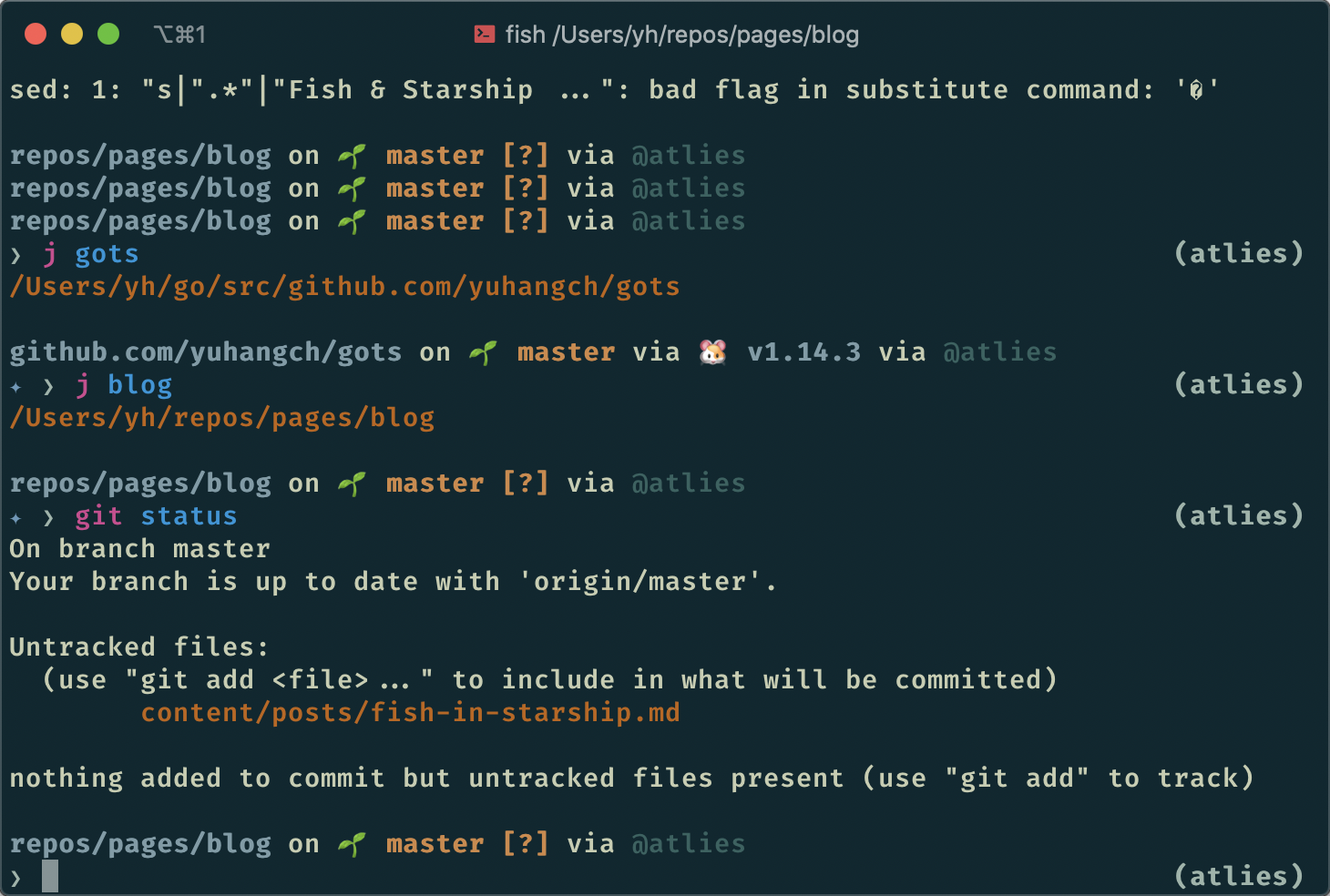
Screenshot